Showing posts with label Active Directory. Show all posts

23 November, 2015

Which DNS records would be scavenged - AD

In connection with a previous post on listing DNS scavenging settings, I thought I'd post those couple of lines of codes which gave me confidence before turning on or modifying scavenging settings - before I turn on any automation which only exists to delete stuff from production environment I always have a second thought when I put my head on the pillow, "did I really set the right values or will the phone ring in 2 hours waking me up and telling me there's a DNS outage?"

To make it a bit more scientific than "close your eyes and click OK", here is a couple of lines of PS which can help you identify all records from a DNS zone which would be deleted based on your thresholds.
  • Set parameters, DNS server name, the DNS zone and the age threshold which specifies how many days older records should be deleted. Scavenging has a 7 + 7 days "No-refresh" + "Refresh" interval, so records older than 14 days will potentially be deleted when scavenging process runs:
    #set parameters
    $server = "c3podc1"
    $domain = "tatooine.com"
    $agetreshold = 14
  • Threshold in hours from Microsoft's beginning of time definition (1st Jan 1601):
    # calculate how many hours is the age which will be the threshold
    $minimumTimeStamp = [int] (New-TimeSpan -Start $(Get-Date ("01/01/1601 00:00")) -End $((Get-Date).AddDays(-$agetreshold))).TotalHours
  • Enumerate all records older than the time threshold
    # get all records from the zone whose age is more than our threshold $records = Get-WmiObject -ComputerName $dnsServer -Namespace "root\MicrosoftDNS" -Query "select * from MicrosoftDNS_AType where Containername='$domain' AND TimeStamp<$minimumTimeStamp AND TimeStamp<>0 "
  • List the records and the time stamps
    # list the name and the calculated last update time stamp
    $records | Select Ownername, @{n="timestamp";e={([datetime]"1.1.1601").AddHours($_.Timestamp)}}
The output should look like this:
DNS records with time stamps


The full script:
 #set parameters  
 $dnsServer = "c3podc1"  
 $domain = "tatooine.com"  
 $agetreshold = 14  
   
 # calculate how many hours is the age which will be the threshold  
 $minimumTimeStamp = [int] (New-TimeSpan -Start $(Get-Date ("01/01/1601 00:00")) -End $((Get-Date).AddDays(-$agetreshold))).TotalHours  
   
 # get all records from the zone whose age is more than our threshold   
 $records = Get-WmiObject -ComputerName $dnsServer -Namespace "root\MicrosoftDNS" -Query "select * from MicrosoftDNS_AType where Containername='$domain' AND TimeStamp<$minimumTimeStamp AND TimeStamp<>0 "  
   
 # list the name and the calculated last update time stamp  
 $records | Select Ownername, @{n="timestamp";e={([datetime]"1.1.1601").AddHours($_.Timestamp)}}  


t


08 November, 2015

List DNS scavenging settings on multiple servers remotely - AD

DDNS (Dynamic DNS where clients register their own DNS records) was a very good idea when it was published in RFC2136 and had been missing like a slice of bread, but it inevitably left some questions on the table. For example, if I let 100 000 hosts register their own records, who will tell them to clean-up their stuff if they don't need it anymore? On the other hand, if I don't use DDNS and I have only one DHCP server registering addresses, I can just regulate that one guy and tell it off if it doesn't cleanup its rubbish.

The answer is DNS scavenging which would be the butter on that slice of bread just to make it taste better and proper. But we want to make sure that the butter we put on the bread is not rotten. Otherwise we would need to throw the bread to the bin with the butter... ok, enough of this nonsense.

DNS scavenging essentially deletes stale / old records from the given DNS Zone. What we want to make sure that the scavenging process is properly configured otherwise we could end up losing very valuable DNS records and cause outages - believe me, you don't want an outage caused by something as fundamental as DNS.

There are a couple of rules we need to keep in mind:
  • The scavenging intervals have to be thought through - I'd go with the default settings 7+7 days
  • There should be only 1 DNS server scavenging the zone regularly even if we have lots of e.g. Domain Controllers hosting the zone.
  • The zone should be restricted and only that one server should be allowed to scavenge the zone. You can read more about scavenging e.g. here and here 
Question: if I have 100 domain controllers hosting an AD integrated zone how can I check if there's only one set to scavenge the zone. To get these settings from one server, you can use dnscmd /info. To do it on multiple servers you can do some dnscmd output parsing in powershell, e.g.:

Create an object where you will store the name of the DNS host, the scavenging interval set on that server and the default aging state on that server:
$sObject = "" | select hostname,ScavengingInterval,LastScav,DefaultAgingState

Take the output of dnscmd /info and go through each line:
dnscmd $srv /info | %{

If it's the line where scavenging info is stored, do some regex matching to take out the bits you need:
if($_ -imatch "last scav"){
$value = ([regex]::Match($_, "= .+$")).value -replace "= ",""

Add it to your output object:
$sObject.LastScav = $value

It will show you an output like this:
Note the date and result of the last scavenging run


The full script:
 # get the list of Windows DNS servers from the pipe  
 $hostlist = @($Input)  
   
 $hostlistlength = ($hostlist | measure).count  
   
 # go through each host  
 foreach($srv in $hostlist){  
    $sObject = "" | select hostname,ScavengingInterval,LastScav,DefaultAgingState  
   
    # run dnscmd to get the detailed info of each DNS server  
    dnscmd $srv /info | %{  
       $value = $null  
   
       # pick out the data from dnscmd output with regex matches  
       if($_ -imatch "last scav"){  
          $value = ([regex]::Match($_, "= .+$")).value -replace "= ",""  
          $sObject.LastScav = $value  
          $value = $null  
       }  
       elseif($_ -imatch "ScavengingInterval"){  
          $value = ([regex]::Match($_, "= .+$")).value -replace "= ",""  
          $sObject.ScavengingInterval = $value  
          $value = $null  
       }  
       elseif($_ -imatch "DefaultAgingState"){  
          $value = ([regex]::Match($_, "= .+$")).value -replace "= ",""  
          $sObject.ScavengingInterval = $value  
          $value = $null  
       }  
    }  
    $sObject  
 }  


23 June, 2015

Find PDC in a domain (not just current domain) - AD

Here's a question for a nice outage on a quiet spring evening, you've got issues with a PDC, you want to make sure you check out all the PDCs in all your Active Directory domains, how can you find the PDCs quickly in each domain without running nltest query fsmo against all domains one by one?

Side note: The Active Directory Domain Controller which holds the PDC (Primary Domain Controller) role in a Domain is not uber-critical to be up and running in every minute, but if it's up and not performing well...well that's a different issue. If the PDC is down, that only means the password change sync is slow, so users may get weird behavior when changing password and using that against another domain controller in a short period of time. The other roles like primary time source, GPO and DFS master server in case of replication conflicts...etc. are not massively important.
The biggest issue is when it's sporadically responding or sometimes doesn't, that makes the behavior of applications contacting the PDC unpredictable and hard to troubleshoot.

First step, let's list our PDCs in all domains. If you have several forests and domains it's not that easy as it sounds first. There are several ways and if you have Windows 2012 R2 with AD tools installed, it's fairly easy:

PS C:\> Import-Module ActiveDirectory
PS C:\> (Get-ADForest -identity tatooine.com).domains | %{(Get-ADDomain -server $_).PDCEmulator

But if you want to make sure you have a script which gets the PDC of a specified domain without dependency on the ActiveDirectory PowerShell Module, here are two native ways to do it


With a normal LDAP search:
PS C:\> $domainDN = "dc=tatooine,dc=com"
PS C:\> $searchRoot = new-object System.DirectoryServices.DirectoryEntry(LDAP://$domainDN)
PS C:\> $searcherObj = new-object Systen.DirectoryServices.DirectorySearcher
PS C:\> $searcherObj.Filter = ("(objClass=top)")
PS C:\> $tmpstr = $searcherObj.SearchRoot.Properties.Item("fsmoroleowner").Value
PS C:\> $pdc = $tmpstr.split(",")[1].split("=")[1]


Via .net Directory context:
PS C:\> $domainFQDN = "tatooine.com"
PS C:\> $context = new-object System.DirectoryServices.ActiveDirectory.DirectoryContext("Domain",$domainFQDN)
PS C:\> $domain = [System.DirectoryServices.ActiveDirectory.Domain]::GetDomain($context)
PS C:\> $domain.pdcRoleOwner


Advanced stuff, list all PDCs of all domains in 1 forest:
PS C:\> $ForestRootDomainFQDN = "tatooine.com"
PS C:\> $context = new-object System.DirectoryServices.ActiveDirectory.DirectoryContext("Forest",$ForestRootDomainFQDN)
PS C:\> $forest = [System.DirectoryServices.ActiveDirectory.Forest]::GetForest($context)
PS C:\> $forest.Domains | %{$_.pdcRoleOwner.name}

You've got the names of the PDCs, so you can go and fix them ;)

t

26 April, 2014

Validate Domain Controller certificates - AD

This is a specific post about Domain Controller Authentication certificates but the problem and the solution can be applied to any type of certificate you have on your servers.

By default, a domain controller uses LDAP to provide your clients data from Active Directory (TCP port 389).  For example when a client wants to check if a user is member of a group, everything goes through the network in clear text.
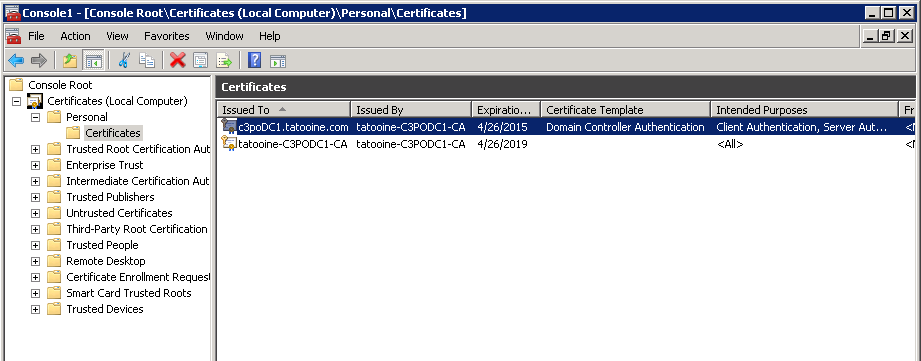
If you want to provide LDAP over SSL in your domain to make the LDAP traffic secured, you need to have a so called Domain Controller Authentication certificate (which is in fact a template that describes a certificate for Client and Server authentication plus smart card logon) added to the DCs personal certificate container and taaadaaam, LDAPS will be available (TCP port 636), you should see on your DC something like this:


To make sure the certificate is always valid and does not expire, you can setup auto enrolment via GPO if you have a nice AD integrated PKI infrastructure. However, auto enrolment can sometimes fail if for example someone messes up the permissions on the CA server or folder permissions on domain controllers and if that's done at the wrong time, your DC certificate can expire and bang, there's your outage on a Sunday afternoon when some applications stop working because they can't access AD via LDAPS.

The best solution is to put some monitoring in place, e.g. via SCOM or anything similar which checks certificates periodically and if they are about to expire, sends an alert.

However, if you just want to query your DCs to see how those certificates are at a point in time or you want periodic report on them, it's easier to simply write a couple of lines in PowerShell.

Enumerate certificates on remote hosts

It's easy to get a list of certificates from a remote host:
$srv = "c3podc1"
$certStore = New-Object System.Security.Cryptography.X509Certificates.X509Store("\\$srv\My", "LocalMachine")
$certStore.Open("ReadOnly")
$certStore.certificates


But this does not give you all the fields you want to read, e.g. you may have many certs installed on your DC but you only want to know about the Domain Controller Authentication one, so you need to somehow enumerate the Cert Template names as well (see screen shot above), here is the trick to list all certificates' template names:
$certStore.certificates | %{($_.extensions | ?{$_.oid.friendlyname -match "template"}).format(0) -replace "(.+)?=(.+)\((.+)?", '$2'}

Basically, you need to go through each certificate's 'extensions' and see if the 'oid.friedlyname' contain template, if it is, then use the format method of the X509Extension object to get the name of the template. You will get it with a lot of junk, like this:

Template=Domain Controller Authentication(1.3.6.1.4.1.311.21.8.13987996.9101750.1067918.14758690.631985.210.1.28), Major Version Number=110, Minor Version Number=0

You can use the -replace operator to pick out the string which comes after the first '=':

List Domain Controller Authentication certificates

Now we can list all certificates, we can even pick up the one with Domain Controller Authentication template, we just need to read the date when it expires and then mark it with some RAG (red /amber / green) status based on how close it is to be expired -for me I mark it RED if it is to expire within 30 days because based on my cert template auto enrolment should renew the cert in the last 6 weeks:

Here is the simplified script (you can add function to send mails, log actions...etc., based on some of the previous posts in this blog):
 $hostlist = @($Input)  
   
 foreach($srv in $hostlist){  
    $certStore = New-Object System.Security.Cryptography.X509Certificates.X509Store("\\$srv\My", "LocalMachine")  
    $certStore.Open("ReadOnly")  
    $certStore.certificates | %{  
       $obj = "" | Select Subject,Template,ValidUntil,RAG  
       $obj.Subject = ($_.extensions | ?{$_.oid.friendlyname -match "Subject Alternative Name"}).format(0) -replace "^.+=", ""  
       $obj.Template = ($_.extensions | ?{$_.oid.friendlyname -match "template"}).format(0) -replace "(.+)?=(.+)\((.+)?", '$2'  
       $obj.ValidUntil = $_.NotAfter  
   
       if($obj.Template -ieq "Domain Controller Authentication"){  
          if((get-date($obj.ValidUntil)) -gt (Get-Date).adddays(30)){  
             $obj.RAG = "GREEN"  
          }  
          else{  
             $obj.RAG = "RED"  
          }  
          $obj     
       }     
    }  
 }  


t


23 February, 2014

Parse OU location from DistinguishedName - AD

This post is just a bit of breadcrumb of Powershell bits. I've got some scripts which run regularly and have to analyse 100 000+ AD objects. It can take hours to run them, so every bit of code that can make one iteration in the loop a couple of milliseconds quicker can pay significant dividends when running against many objects.

As I was looking through my 3 years old code, I noticed an ugly solution (we all do these things, don't we). I needed to get the OU location of each object, so I decided to take the DistinguishedName attribute and drop the name of the object from the beginning of string therefore I end up with the full LDAP formatted path of the object (could have taken the CanonicalName attibute in reverse order and replace '\' with 'cn=' or 'dn=' or 'ou=', but then I would have to lookup each of those elements to figure if they are OUs or containers...etc.)

Let's take an example, the dinstinguishedName of an object is "CN=DroidServer,OU=ChalmunsCantina,OU=MosEisley,DC=tatooine,DC=com", so the LDAP path of the object can be determined by dropping the first part of this string before the first comma which leaves us with: "OU=ChalmunsCantina,OU=MosEisley,DC=tatooine,DC=com".

First attempt - original code in my script

Easy, lets split the string based on commas, put the elements into an array and drop the first element, then join the elements into a string again (now without the cn=objectname piece):
 $distinguishedName = "CN=DroidServer,OU=ChalmunsCantina,OU=MosEisley,DC=tatooine,DC=com"  
 $arrDN = New-Object System.Collections.ArrayList  
 $tmparr = $distinguishedName.Split(",")  
 $tmparr | %{[void]$arrDN.add($_)}  
 $arrDN.RemoveAt(0)  
 $accLocation = [string]::join(",",$arrDN)  
 $accLocation  

This will take 96.5 milliseconds on my machine.
96 milliseconds, fair enough, it's quicker than me doing this on paper.

Second attempt

Let's get rid of the foreach-object (%) when adding elements to $tmpArr and use the .AddRange method of the ArrayList instead - this will just add all elements in one go instead of going through element by element:
 $distinguishedName = "CN=DroidServer,OU=ChalmunsCantina,OU=MosEisley,DC=tatooine,DC=com"  
 $arrDN = New-Object System.Collections.ArrayList  
 $tmparr = $distinguishedName.Split(",")  
 [void]$arrDN.addrange($tmparr)  
 $arrDN.RemoveAt(0)  
 $accLocation = [string]::join(",",$arrDN)  
 $accLocation  


25 milliseconds, not bad, 4 times quicker.
 

Third attempt

To see if it can be even quicker, we'll need to "thinking outside the box" and see if there's any simpler solution than working with arrays and instead do this in one step and drop the first bit of the string which we don't need.
It's not obvious in PowerShell because the -replace operator does not support the regular expressions which refer only to the first occurrence in a string. What we can do is make it drop all characters which are not commas and they are followed by a comma, that would make sure the "cn=computername," string is dropped and we end up with the full LDAP path of the object:
 $distinguishedName = "CN=DroidServer,OU=ChalmunsCantina,OU=MosEisley,DC=tatooine,DC=com"  
 $accLocation = $distinguishedName -creplace "^[^,]*,",""  
 $accLocation  

Explanation for the regex pattern:
  • ^       start of the string
  • [^,]*   match one or more non-comma characters
  • ,       match a comma character
 
0.4669 milliseconds!
200 times quicker than the first solution! With 100 000 objects, originally it takes 160 minutes (obviously in real life it will be less because of caching...etc.) and with the 3rd solution it should take a bit less than a minute. Maybe it can be quicker with some better trick, but I'm not greedy, I've shaved off ~2.5 hours runtime, it's good enough for me... for today...

t

15 March, 2013

Enumerate eventlog: NETLOGON errors of broken secure channel - AD

If you have a big Active Directory, you will always have noise in the eventlog of your domain controllers which is not what you want because you might miss the wood... you know, you can't see the wood from the trees.
Sometimes the noisiest one is the NETLOGON service because whenever a machine which either forgot its password or has a broken secure channel or doesn't have an account in AD tries to connect to a DC, Netlogon service throws and error to the System log. Don't ask me why it's an error, in my view it should be a warning (tops) as it's not really an error of NETLOGON. Moreover, if I was MSFT, I would have made it an optional event turned on/off via registry, similar to the NTDS diagnostics events under HKLM\SYSTEM\CurrentControlSet\services\NTDS\Diagnostics.

Anyway, let's not dwell on it but try to do something about it. If you are a conscientious AD guy (and why wouldn't you be, we all are conscientious when it's about work ;) ) you want to make things right. First step: let's identify the machines which have broken secure channel. It shouldn't be difficult, the machine name is part of the event message. However, I have 100+ domain controllers, 30+ sites, reading through the eventlog on a regular basis is not an option. Need a script!

The script which you'll see at the bottom of the article is capable of:
  • Enumerating the netlogon events from a DC and parse the error message and the client name from the event description
  • Can work against 1 DC or a list of DCs in a specified site

Some interesting facts about the script. It uses Get-WinEvent command. If you use it remotely, it can be quite slow, e.g. let's list all events with EventID 5805 from the System Event log:
Get-WinEvent -ea SilentlyContinue -ComputerName c3poDC -LogName System | where{$_.id -eq 5805}

It takes a bit more than 30 seconds:


Obviously, the biggest issue is that it takes all events and then filters to the eventid afterwards. Let's try a trick, hash table. It's in the help of the command that it takes filters in hash table format. Excellent, let's try this then:
Get-WinEvent -ea SilentlyContinue -ComputerName c3poDC -FilterHashtable @{LogName = "System"; id=5805}

Hmmm... not bad, 4 seconds, now we are talking.


We can just dress up the script a bit:
  • take an integer which determines how many days we want to go back in the log (makes the query even quicker):
    $after = (Get-Date).adddays(-$lastday)
    Get-WinEvent -ea SilentlyContinue -ComputerName $srv -FilterHashtable @{LogName = "System"; StartTime = $after; id=5805}
  • take DC name which we want to query
  • take site name, enumerate the DCs in the site, and then run through them:
    $dclist = Get-ADDomainController -filter * | where{$_.site -ieq $site} | %{$_.name}
  • parse the client name from the event message
    $obj.Computer = [regex]::Match($_.message, "\d|\w+ failed").Value -ireplace " failed",""
  • make sure we only pick up a client name only once, so we have a unique list of clients with secure channel issues at the end:
    if($computerList -inotcontains $obj.Computer){
The full script with comments:
 param(      [string] $dcname = "",  
           [string] $site = "",  
           [int] $lastday = 2)  
 # if -dcname is not specified, but -site is, let's get the ist of DCs from that site  
 if(!$dcname -and $site){  
      Import-Module activedirectory  
      $dclist = Get-ADDomainController -filter * | where{$_.site -ieq $site} | %{$_.name}  
 }  
 else{  
      $dclist = @($dcname)  
 }  
 $dclist  
 # generate the start date for the eventlog query  
 $after = (Get-Date).adddays(-$lastday)  
 $objColl = $computerList = @()  
 if($dclist.length -gt 0){  
      foreach($srv in $dclist){  
           # get the netlogon 5805 events from the eventlog generated after the given date  
           Get-WinEvent -ea SilentlyContinue -ComputerName $srv -FilterHashtable @{LogName = "System"; StartTime = $after; id=5805} | %{  
                $obj = "" | select DC,Computer,message,Date  
                $obj.DC = $srv  
                # parse the computername from the event message  
                $obj.Computer = [regex]::Match($_.message, "\d|\w+ failed").Value -ireplace " failed",""  
                # if we haven't recorded the alert about the given computerm then record it  
                if($computerList -inotcontains $obj.Computer){  
                     $obj.message = $_.message.Split("`n")[1]  
                     $obj.Date = $_.TimeCreated  
                     # add the computername to an array where we can check if we have picked up an event on the given computer already  
                     $computerList += $obj.Computer  
                     $objColl += $obj  
                }  
           }  
      }  
 }  
 else{  
      Write-Host -ForegroundColor "red" "No DC or Site specified."  
 }  
 $objColl  


11 November, 2012

Get list of GCs - Active Directory


Ok, here is the next bit. I have many domain controllers (DC) in an Active Directory forest and need to know which domain controller is a Global Catalog (GC). Read it carefully: it's not enough to list which DCs have the GC flag set, I need to know which DC is properly advertised as a GC. Why? Because having enough number of healthy GCs in a forest is essential for Exchange Address Book lookups and for Universal Group membership caching. And again, you can activate the GC flag in dssite.msc many times, if you have an AD database with size of 10+ GB, it will take time to get all the global catalog data built up and replicated across.

Obviously, if you had 2 DCs, you could look into the eventlog and see if there's any eventid 1126 in the log, but doing it every day with every domain controller, after reboot...nah, you don't want to go down that way.

First, let's get the list of DCs in a particular domain. There are many ways to do this, i.e. if you don't have Windows 2008 in your environment , you can do this:
([System.DirectoryServices.ActiveDirectory.DomainController]::findall((new-object System.DirectoryServices.ActiveDirectory.DirectoryContext("Domain","tatooine.com"))))

If you have 2008 DCs:
import-module ActiveDirectory
$DCs = Get-ADDomainController -filter * -DomainName tatooine.com

To list which DC is advertised as a GC, you can use the isGlobalCatalogReady RootDSE attribute, on Windos 2003 DCs:
gc dcs.txt | %{$p="" | select ComputerName,Is_GC; $p.ComputerName=$_; $p.Is_gc=(([adsi]("LDAP://" + $_ + "/RootDSE")).isGlobalCatalogReady); $p}


On Windows 2008 DCs:
$GCs = Get-ADDomainController -filter { IsGlobalCatalog -eq $True}

Let's combine this with checking which DC should really be a GC, so where the GC flag is set and have a full list of DCs with the two parameters:
- GC flag's status on the server
- Is GC ready flag on the server

$objColl = @(); $DCs | %{
   # create object with 3 properties   $psObj = "" | select ComputerName,Is_GC_Ready,Is_GC_set
   $psObj.ComputerName = $_     # get if the particular DC is advertised as a GC
   $RootDSE = ([adsi]("LDAP://" + $_ + "/RootDSE"))
   $psObj.Is_gc_ready = $RootDSE.isGlobalCatalogReady
     # enumerate the GC flag of the server
   $ntdsObj = $RootDSE.Get('dsServiceName')
   $psObj.Is_gc_set = ([adsi]"LDAP://$_/$ntdsObj").Get('options')
     $objColl += $psObj
   $psObj}

The object collection can be filtered afterwards, i.e. I want to know the list of DCs which have GC flag set but they are not advertised as GCs:
$objColl | ?{($_.Is_GC_set -eq 1) -and ($_.Is_GC_Ready -eq $false)}

Or list the DCs which do not have the GC flag set:
$objColl | ?{($_.Is_GC_set -eq 0)

Feel free to edit it and experiment with the ActiveDirectory cmdlets on Windows 2008 (Get-ADDomainController)

Clipboar friendly code:
$objColl = @(); 
$DCs | %{ 
  
      # create object with 3 properties
      $psObj = "" | select ComputerName,Is_GC_Ready,Is_GC_set
      $psObj.ComputerName = $_
  
      # get if the particular DC is advertised as a GC
      $RootDSE = ([adsi]("LDAP://" + $_ + "/RootDSE"))
      $psObj.Is_gc_ready = $RootDSE.isGlobalCatalogReady
  
      # enumerate the GC flag of the server
      $ntdsObj = $RootDSE.Get('dsServiceName')
      $psObj.Is_gc_set = ([adsi]"LDAP://$_/$ntdsObj").Get('options')
  
      $objColl += $psObj
      $psObj
}  

May the force...
t