Showing posts with label psobject. Show all posts

08 November, 2015

List DNS scavenging settings on multiple servers remotely - AD

DDNS (Dynamic DNS where clients register their own DNS records) was a very good idea when it was published in RFC2136 and had been missing like a slice of bread, but it inevitably left some questions on the table. For example, if I let 100 000 hosts register their own records, who will tell them to clean-up their stuff if they don't need it anymore? On the other hand, if I don't use DDNS and I have only one DHCP server registering addresses, I can just regulate that one guy and tell it off if it doesn't cleanup its rubbish.

The answer is DNS scavenging which would be the butter on that slice of bread just to make it taste better and proper. But we want to make sure that the butter we put on the bread is not rotten. Otherwise we would need to throw the bread to the bin with the butter... ok, enough of this nonsense.

DNS scavenging essentially deletes stale / old records from the given DNS Zone. What we want to make sure that the scavenging process is properly configured otherwise we could end up losing very valuable DNS records and cause outages - believe me, you don't want an outage caused by something as fundamental as DNS.

There are a couple of rules we need to keep in mind:
  • The scavenging intervals have to be thought through - I'd go with the default settings 7+7 days
  • There should be only 1 DNS server scavenging the zone regularly even if we have lots of e.g. Domain Controllers hosting the zone.
  • The zone should be restricted and only that one server should be allowed to scavenge the zone. You can read more about scavenging e.g. here and here 
Question: if I have 100 domain controllers hosting an AD integrated zone how can I check if there's only one set to scavenge the zone. To get these settings from one server, you can use dnscmd /info. To do it on multiple servers you can do some dnscmd output parsing in powershell, e.g.:

Create an object where you will store the name of the DNS host, the scavenging interval set on that server and the default aging state on that server:
$sObject = "" | select hostname,ScavengingInterval,LastScav,DefaultAgingState

Take the output of dnscmd /info and go through each line:
dnscmd $srv /info | %{

If it's the line where scavenging info is stored, do some regex matching to take out the bits you need:
if($_ -imatch "last scav"){
$value = ([regex]::Match($_, "= .+$")).value -replace "= ",""

Add it to your output object:
$sObject.LastScav = $value

It will show you an output like this:
Note the date and result of the last scavenging run


The full script:
 # get the list of Windows DNS servers from the pipe  
 $hostlist = @($Input)  
   
 $hostlistlength = ($hostlist | measure).count  
   
 # go through each host  
 foreach($srv in $hostlist){  
    $sObject = "" | select hostname,ScavengingInterval,LastScav,DefaultAgingState  
   
    # run dnscmd to get the detailed info of each DNS server  
    dnscmd $srv /info | %{  
       $value = $null  
   
       # pick out the data from dnscmd output with regex matches  
       if($_ -imatch "last scav"){  
          $value = ([regex]::Match($_, "= .+$")).value -replace "= ",""  
          $sObject.LastScav = $value  
          $value = $null  
       }  
       elseif($_ -imatch "ScavengingInterval"){  
          $value = ([regex]::Match($_, "= .+$")).value -replace "= ",""  
          $sObject.ScavengingInterval = $value  
          $value = $null  
       }  
       elseif($_ -imatch "DefaultAgingState"){  
          $value = ([regex]::Match($_, "= .+$")).value -replace "= ",""  
          $sObject.ScavengingInterval = $value  
          $value = $null  
       }  
    }  
    $sObject  
 }  


27 October, 2013

Object output for Powershell scripts - Scripting

Through previous articles I kept writing about object output and how good that is for further processing in Powershell. What is an object... well... I'm not a developer, so I won't be able to explain it with nice sophisticated phrases. The object is a thing :)

For me the easiest way to imagine an object as a row of a table. The table has several columns which will be the object's properties and you can put multiple objects into an object collection or array, that will form the table.


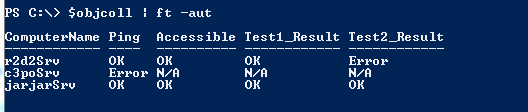
Listing a custom object collection
 
Why is this a good thing? First of all, if you want to store more than one type of data about a computer within your script, you can create those properties for your object and just add the data into them as you can see on the picture above. I stored information about 3 servers such as whether the servers are pingable, accessible and put some different test results as well.
Also, you can use filtering on your object collection, e.g. if I want to list rows (objects) where the 'Ping' column (property) is Error:
$objColl | where{$_.ping -eq "Error"}

Filtering a custom object collection

There are multiple ways to create an object.

  • System.Object with Add-Member - it is slower than other methods, however, you can specify the order of properties, you can add values to the properties when creating them:
    $myObject = new-Object -typename System.Object
    $myObject | add-Member -memberType noteProperty -name ComputerName -Value $srvname
    $myObject | add-Member -memberType noteProperty -name Ping -Value "N/A"
    $myObject | add-Member -memberType noteProperty -name Accessible -Value "N/A"
    $myObject | add-Member -memberType noteProperty -name Test1_Result -Value "N/A"
    $myObject | add-Member -memberType noteProperty -name Test2_Result -Value "N/A"


  • PSobject with Select - it is quicker than add-member and you can specify the order of properties, however you cannot add values to the properties when creating them and you assume all properties will have string type. It's not a big deal but not very elegant:
    $myObject = "" | Select ComputerName,Ping,Accessible,Test1_Result,Test2_Result

  • You can store property names in an array and pass it to the Select-Object filter:
    $arrProperties = @("ComputerName","Ping","Accessible","Test1_Result","Test2_Result")
    $myObject = "" | Select $arrProperties

  • PSObject defined via hash table - it's quick, you can add values to the properties in one go, however, as with hash tables in general, you cannot define the order of the properties, so it can be odd when you see the result and the columns are in random order
    $myObject = New-Object PSObject -Property @{ComputerName = $srvname; Ping = "OK"; Accessible = "N/A"; Test1_Result = "N/A"; Test2_Result = "N/A"}

The object is created, as you can see above, depending on how you create it, you can add values to properties on the fly or when the object is ready and can access the properties easily just referring to them with a dot:


More than one object

When you have more than one object, you can add them into an array and form a 'table':
$objColl = @()
$objColl += $myObject

Then you can modify the objects in the collection if you want to, e.g. if I want to make sure the Test1_Result column contains only a string of aaaa, I can simply do this:


There's one more good trick with object collections. I usually write scripts for large number of objects, e.g. check out 5000 servers, get data of 100 000 AD objects...etc. Therefore the object collection is big and non-indexed. Even though it's in the memory during runtime, it takes a while to search and find objects. One of my colleague had a good idea and I've been using it since then: put the objects into a hash table with the key that you want to search for. E.g. if you know that you want to search for the ComputerName and you want to read a property of that object from your collection you can make the ComputerName the hash key and the object itself the hash value:
$objCollHash = @{}
$objColl | %{$objCollHash.add($_.ComputerName, $_)}

Now we can test how much time it takes to find an object in a collection of 9999 objects with 3 attributes, first with normal filter:


900+ millisecond, not bad, so less than a second to find an object from 9999.

Ok, let's see the hash table:


Ughm... less than a millisecond! 900+ times quicker than the previous one. I guess it's worth the effort to put those 2 lines into the script.

That's all for today. Hope this helps people to understand why objects and pipe'ing is useful.

t