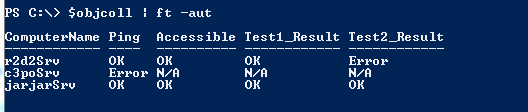
Through previous articles I kept writing about object output and how good that is for further processing in Powershell. What is an object... well... I'm not a developer, so I won't be able to explain it with nice sophisticated phrases. The object is a thing :)
For me the easiest way to imagine an object as a row of a table. The table has several columns which will be the object's properties and you can put multiple objects into an object collection or array, that will form the table.
 |
| Listing a custom object collection |
Why is this a good thing? First of all, if you want to store more than one type of data about a computer within your script, you can create those properties for your object and just add the data into them as you can see on the picture above. I stored information about 3 servers such as whether the servers are pingable, accessible and put some different test results as well.
Also, you can use filtering on your object collection, e.g. if I want to list rows (objects) where the 'Ping' column (property) is
Error:
$objColl | where{$_.ping -eq "Error"}
 |
| Filtering a custom object collection |
There are multiple ways to create an object.
- System.Object with Add-Member - it is slower than other methods, however, you can specify the order of properties, you can add values to the properties when creating them:
$myObject = new-Object -typename System.Object
$myObject | add-Member -memberType noteProperty -name ComputerName -Value $srvname
$myObject | add-Member -memberType noteProperty -name Ping -Value "N/A"
$myObject | add-Member -memberType noteProperty -name Accessible -Value "N/A"
$myObject | add-Member -memberType noteProperty -name Test1_Result -Value "N/A"
$myObject | add-Member -memberType noteProperty -name Test2_Result -Value "N/A"
- PSobject with Select - it is quicker than add-member and you can specify the order of properties, however you cannot add values to the properties when creating them and you assume all properties will have string type. It's not a big deal but not very elegant:
$myObject = "" | Select ComputerName,Ping,Accessible,Test1_Result,Test2_Result
- You can store property names in an array and pass it to the Select-Object filter:
$arrProperties = @("ComputerName","Ping","Accessible","Test1_Result","Test2_Result")
$myObject = "" | Select $arrProperties
- PSObject defined via hash table - it's quick, you can add values to the properties in one go, however, as with hash tables in general, you cannot define the order of the properties, so it can be odd when you see the result and the columns are in random order
$myObject = New-Object PSObject -Property @{ComputerName = $srvname; Ping = "OK"; Accessible = "N/A"; Test1_Result = "N/A"; Test2_Result = "N/A"}
The object is created, as you can see above, depending on how you create it, you can add values to properties on the fly or when the object is ready and can access the properties easily just referring to them with a dot:
More than one object
When you have more than one object, you can add them into an array and form a 'table':
$objColl = @()
$objColl += $myObject
Then you can modify the objects in the collection if you want to, e.g. if I want to make sure the Test1_Result column contains only a string of
aaaa, I can simply do this:
There's one more good trick with object collections. I usually write scripts for large number of objects, e.g. check out 5000 servers, get data of 100 000 AD objects...etc. Therefore the object collection is big and non-indexed. Even though it's in the memory during runtime, it takes a while to search and find objects. One of
my colleague had a good idea and I've been using it since then: put the objects into a hash table with the key that you want to search for. E.g. if you know that you want to search for the ComputerName and you want to read a property of that object from your collection you can make the ComputerName the hash key and the object itself the hash value:
$objCollHash = @{}
$objColl | %{$objCollHash.add($_.ComputerName, $_)}
Now we can test how much time it takes to find an object in a collection of 9999 objects with 3 attributes, first with normal filter:
900+ millisecond, not bad, so less than a second to find an object from 9999.
Ok, let's see the hash table:
Ughm... less than a millisecond! 900+ times quicker than the previous one. I guess it's worth the effort to put those 2 lines into the script.
That's all for today. Hope this helps people to understand why objects and pipe'ing is useful.
t