23 March, 2014

List SCCM servers in your infrastructure - SCCM

When you have a large infrastructure, you have lots of moving parts, so you might not want to keep track of your servers on  PostIt or in an xls file. Why? It's just overhead and someone always forgets to update it when pulling a server out or installing a new one.

Let's make the inventory dynamic and base it on the infrastructure component itself... meaning, if you have e.g. an SCCM infrastructure with many sites, many servers with different roles (Management points, Site Servers, Fallback status points...etc.) try to gather it from the SCCM infrastructure itself, instead of having a manual list in an xls file somewhere.
Happened one day that I wanted to get the list of SCCM servers in all the sites (sub-sites) with all their roles (SCCM 2007 and SCCM 2012 as well. If you start browsing in the WMI root of SCCM on the site server and look through some of the tables in the database, you will the way eventually, here is the SQL query which lists all SCCM servers and their roles (with some garbage):
Select distinct SiteSystem, SiteCode, Role FROM dbo.Summarizer_SiteSystem ORDER BY SiteCode

To get rid of the garbage and only see the server names, let's do a regex match and some replacing:
[string]$tmpstr = [regex]::Match($sccmSrvObj.sitesystem, \\\\(\w|\.)+\\$)
$sccmServerName = $tmpstr.replace("\", "")

If you want the roles listed as well:
$sccmQueryResult | ?{$_.SiteSystem -imatch $sccmServerName}| %{$sObject.Role += $_.role + ","}

If you have SCCM 2012, be aware that the database naming changed from SMS_sitecode to CM_sitecode, however they also made the DB name available via WMI:
$sccmDB = (gwmi -ComputerName $sccmsrv -Namespace ROOT\SMS\site_$site -Class SMS_SCI_SiteDefinition).SQLDatabaseName

Here is an example script which takes an SCCM server name and a Site code and lists all servers from that site (and sub-sites) with their SCCM roles - as always, you can add logging, error handling...etc.
If you want to make it more sophisticated, you could just get an Active Directory domain name, read the list of SCCM sites registered and then list all SCCM servers... I may put it into another article...

 
 param(     [string] $sccmSrv = "",  
           [string] $site = "")  
   
   
 #### Function for executing a SQL query with integrated authentication    
 function execSQLQuery ([string]$fSQLServer, [string]$db, [string]$query){    
      $objConnection = New-Object System.Data.SqlClient.SqlConnection    
      $objConnection.ConnectionString = "Server = $fSQLServer; Database = $db; trusted_connection=true;"    
      $SqlCmd = New-Object System.Data.SqlClient.SqlCommand $query, $objConnection    
      trap {Write-Host -ForegroundColor 'red' "($sqlsrv/$db not accessible)";continue}    
      $SqlCmd.Connection.Open()    
   
      if ($SqlCmd.Connection.State -ine 'Open') {    
           $SqlCmd.Connection.Close()    
           return    
      }    
      $dr = $SqlCmd.ExecuteReader()    
   
      #get the data    
      $dt = new-object "System.Data.DataTable"    
      $dt.Load($dr)    
      $SqlCmd.Connection.Close()    
      $dr.Close()    
      $dr.Dispose()    
      $objConnection.Close()    
      return $dt    
 }    
   
 $objCollection = @()  
 $sccmCompquery = gwmi -q "Select distinct SiteSystem, Role, SiteCode FROM SMS_SiteSystemSummarizer where role = 'SMS SQL Server' and siteCode = '$site' ORDER BY SiteCode" -namespace "root\sms\site_$site" -ComputerName $sccmSrv  
   
 [string]$tmpstr = [regex]::Match($sccmCompquery.sitesystem, "\\\\(\w|\.)+\\$")  
 $sccmSQLServer = $tmpstr.replace("\", "")  
 $sccmDB = (gwmi -ComputerName $sccmsrv -Namespace ROOT\SMS\site_$site -Class SMS_SCI_SiteDefinition).SQLDatabaseName  
   
 if(!$sccmDB){  
      $sccmDB = "SMS_" + $site  
 }  
   
 $sccmCompquery = "Select distinct SiteSystem, SiteCode, Role FROM dbo.Summarizer_SiteSystem ORDER BY SiteCode"  
 $sccmQueryResult = execSQLQuery.NET $sccmSQLServer $sccmDB $sccmCompquery  
   
 foreach($sccmSrvObj in $sccmQueryResult){  
      [string]$tmpstr = [regex]::Match($sccmSrvObj.sitesystem, "\\\\(\w|\.)+\\$")  
      $sccmServerName = $tmpstr.replace("\", "")  
   
      # if we haven't recorded the given server  
      if(!($objCollection | ?{$_.SiteServer -ieq $sccmServerName})){  
   
           $sObject = new-Object -typename System.Object  
           $sObject | add-Member -memberType noteProperty -name SiteServer -Value $sccmServerName  
           $sObject | add-Member -memberType noteProperty -name SiteCode -Value $sccmSrvObj.SiteCode  
           $sObject | add-Member -memberType noteProperty -name Role -Value ""  
   
           # go through the rows in the query result and pick up each row where our server is listed  
           $sccmQueryResult | ?{$_.SiteSystem -imatch $sccmServerName}| %{$sObject.Role += $_.role + ","}  
           $sObject.Role = $sObject.Role -replace ",$",""  
        
           $objCollection += $sObject  
      }  
 }  
   
 $objCollection  


t

23 February, 2014

Parse OU location from DistinguishedName - AD

This post is just a bit of breadcrumb of Powershell bits. I've got some scripts which run regularly and have to analyse 100 000+ AD objects. It can take hours to run them, so every bit of code that can make one iteration in the loop a couple of milliseconds quicker can pay significant dividends when running against many objects.

As I was looking through my 3 years old code, I noticed an ugly solution (we all do these things, don't we). I needed to get the OU location of each object, so I decided to take the DistinguishedName attribute and drop the name of the object from the beginning of string therefore I end up with the full LDAP formatted path of the object (could have taken the CanonicalName attibute in reverse order and replace '\' with 'cn=' or 'dn=' or 'ou=', but then I would have to lookup each of those elements to figure if they are OUs or containers...etc.)

Let's take an example, the dinstinguishedName of an object is "CN=DroidServer,OU=ChalmunsCantina,OU=MosEisley,DC=tatooine,DC=com", so the LDAP path of the object can be determined by dropping the first part of this string before the first comma which leaves us with: "OU=ChalmunsCantina,OU=MosEisley,DC=tatooine,DC=com".

First attempt - original code in my script

Easy, lets split the string based on commas, put the elements into an array and drop the first element, then join the elements into a string again (now without the cn=objectname piece):
 $distinguishedName = "CN=DroidServer,OU=ChalmunsCantina,OU=MosEisley,DC=tatooine,DC=com"  
 $arrDN = New-Object System.Collections.ArrayList  
 $tmparr = $distinguishedName.Split(",")  
 $tmparr | %{[void]$arrDN.add($_)}  
 $arrDN.RemoveAt(0)  
 $accLocation = [string]::join(",",$arrDN)  
 $accLocation  

This will take 96.5 milliseconds on my machine.
96 milliseconds, fair enough, it's quicker than me doing this on paper.

Second attempt

Let's get rid of the foreach-object (%) when adding elements to $tmpArr and use the .AddRange method of the ArrayList instead - this will just add all elements in one go instead of going through element by element:
 $distinguishedName = "CN=DroidServer,OU=ChalmunsCantina,OU=MosEisley,DC=tatooine,DC=com"  
 $arrDN = New-Object System.Collections.ArrayList  
 $tmparr = $distinguishedName.Split(",")  
 [void]$arrDN.addrange($tmparr)  
 $arrDN.RemoveAt(0)  
 $accLocation = [string]::join(",",$arrDN)  
 $accLocation  


25 milliseconds, not bad, 4 times quicker.
 

Third attempt

To see if it can be even quicker, we'll need to "thinking outside the box" and see if there's any simpler solution than working with arrays and instead do this in one step and drop the first bit of the string which we don't need.
It's not obvious in PowerShell because the -replace operator does not support the regular expressions which refer only to the first occurrence in a string. What we can do is make it drop all characters which are not commas and they are followed by a comma, that would make sure the "cn=computername," string is dropped and we end up with the full LDAP path of the object:
 $distinguishedName = "CN=DroidServer,OU=ChalmunsCantina,OU=MosEisley,DC=tatooine,DC=com"  
 $accLocation = $distinguishedName -creplace "^[^,]*,",""  
 $accLocation  

Explanation for the regex pattern:
  • ^       start of the string
  • [^,]*   match one or more non-comma characters
  • ,       match a comma character
 
0.4669 milliseconds!
200 times quicker than the first solution! With 100 000 objects, originally it takes 160 minutes (obviously in real life it will be less because of caching...etc.) and with the 3rd solution it should take a bit less than a minute. Maybe it can be quicker with some better trick, but I'm not greedy, I've shaved off ~2.5 hours runtime, it's good enough for me... for today...

t

28 December, 2013

PATH environment variable ordering - OS

The following problem can be annoying even if you have 5 servers, but even more nerve wrecking if you experience it on 100+ servers - at my favorite time - on a Monday morning.

Usually there are applications installed on a server - why would we need them otherwise. Some applications need to access their files without full path of those therefore they update the PATH environment variable. This is all well because most of the developers know how to do it nicely, but I've come across some applications in my 10+ years of IT experience which I still cannot get my head around.

The PATH environment variable is basically a list of folders separated by ; (semicolons). And even though no one says it, the order of these entries does matter. E.g.: there are applications which - for whatever unspoken reason - add entries to the beginning (!) of this list. Now, if you read the previous 2 sentences carefully, you can have an idea why this is a very bad idea:
The entries in the PATH are evaluated in order, that's why the OS puts stuff in there first (like C:\WINDOWS, C:\WINDOWS\System32...etc.) because there are lot of files there and it's quicker to run a server if you know that most of the queries for files via PATH will be served by the first couple of items. If you put entries to the beginning which are only important for some applications and for just minor number of queries, you basically make your system slower.
Even worse, if - for whatever unspoken reason - there are applications which put PATH entries to the beginning of the variable which refer to either mapped network drives or UNC path, then you can be in trouble. E.g. when there was one such  on a couple of servers and surprise, the box got hung on boot-up because the custom disk manager wanted to look-up some files and hit a PATH entry pointing to a UNC path before the custom SMB engine was initialised. Nice.

Side notes:
  • There can also be an issue with older applications which can only handle up to 1024 characters of the PATH - even though since Windows 2003 SP1 and WinXP SP2 the supported length of PATH is 2048 characters
  • in Powershell (or rather .NET framework), the Add-Type command fails if there are invalid entries in the PATH

Solutions:

To resolve the 2 issues above ((1) make sure the PATH has a desired order and (2) it is as short as possible) you can do a couple of things:
  • remove the last backslash from each entry - this saves some characters and makes it easier to spot duplicates later:
    foreach($item in $tmpdataArray){
    if($item[-1] -eq "\"){$item = $item -replace "\\$",""}
    $dataArray += $item
    }
  • remove duplicate entries from the PATH:
    $newTmpdataArray = $dataArray | Sort-Object -Unique -Descending
  • if the length is still a problem, consider converting long folder names to the old 8.3 type names, e.g.:
    $newdata = $newdata -ireplace "\\program files\\", "\progra~1\"
  • put entries to the beginning which are needed for the OS and put any "external path" (UNC, mapped drives) to the end or remove them if possible, e.g. put all c:\Windows entries to the beginning and put all UNC ones to the end:
    $newTmpdataArray
    = MoveToArrayBeginning $newTmpdataArray "c:\\windows"$newTmpdataArray = MoveToArrayEnd $newTmpdataArray "^\\\\"
  • always backup the original value!


Script's output showing the original and the new PATH values and their length

Functions

BackupPATH
It reads how many backup values exist already, increments the number and creates a new value with the current content of PATH

MoveToArrayBeginning
It runs through an array and adds items to a temp array. If an item matches a given pattern it adds the item to the beginning of the array otherwise it adds it to the end. The key piece is this, which adds the element to the array as either the first or last item:
$farray | %{
  if($_ -imatch $pattern){
    [Void]$newArray.Insert(0,$_
  }
  else
    [Void]$newArray.add($_
  }
}


MoveToArrayEnd
It collects all items matching a pattern to a temp array and then removes and adds those to the end of the original array. It needs the temp array to preserve the original order of the items being moved to the end.


  param ( [string] $hosts = "",   
  [string] $log = "",   
  [switch] $set = $false,   
  [switch] $rollback = $false,   
  [switch] $convertToSortName = $false,   
  [switch] $IknowWhatIamDoing = $false)   
     
     
  #### Function for creating/writing registry value remotely   
  function CreateRegValue ([string]$srv, [string]$value, [string]$newdata, [string]$key) {   
   $regKey = [Microsoft.Win32.RegistryKey]::OpenRemoteBaseKey('LocalMachine',$srv).OpenSubKey($key,$true).SetValue($value, $newdata,'string')   
   if(-not $?){   
     return $false   
   }   
     return $true   
  }   
     
     
  Function BackupPATH($srv, $data){   
   #backing up the original value   
   $sequenceNumber = 0   
     
   # create managePATHVariable subkey if doesn't exist   
   if(!([Microsoft.Win32.RegistryKey]::OpenRemoteBaseKey('LocalMachine',$srv).OpenSubKey('SOFTWARE\PATHBackup'))){   
     [Void][Microsoft.Win32.RegistryKey]::OpenRemoteBaseKey('LocalMachine',$srv).OpenSubKey('SOFTWARE',$true).CreateSubKey('SOFTWARE\PATHBackup')   
   }   
   else{   
     $backupValues = [Microsoft.Win32.RegistryKey]::OpenRemoteBaseKey('LocalMachine',$srv).OpenSubKey('SOFTWARE\PATHBackup').getvaluenames()   
     
     #get latest number sequence for backup value name   
     $latestBackupValueName = $backupValues | ?{$_ -imatch "^PATH_backup"} | sort -Descending | Select -first 1   
     [int]$sequenceNumber = [regex]::match($latestBackupValueName, "\d+$").value   
     $sequenceNumber++   
   }   
   $newBackupValueName = "PATH_backup_" + $sequenceNumber   
     
     
   # Backing up original value to HKLM\SOFTWARE\PATHBackup [$newBackupValueName]..." "nonew"   
   if(CreateRegValue $srv $newBackupValueName $data "SOFTWARE\PATHBackup"){   
     write-host "Backup OK"   
   }   
   else{   
     write-host "Backup error"   
     exit   
   }   
  }   
    
   
 #### Function for reading registry value remotely  
 function GetRegValue ([string]$srv, [string]$value, [string]$key) {  
  $regvalue = [Microsoft.Win32.RegistryKey]::OpenRemoteBaseKey('LocalMachine',$srv).OpenSubKey($key).GetValue($value)  
  return $regvalue  
 }  
    
     
  #### Function for moving array items to the beginning of the array   
  function MoveToArrayBeginning ($farray, $pattern ) {   
   $newArray = New-Object System.Collections.ArrayList   
     
   $farray | %{   
     if($_ -imatch $pattern){   
      [Void]$newArray.Insert(0,$_)   
     }   
     else{   
      [Void]$newArray.add($_)   
     }   
   }   
   return $newArray   
  }   
     
     
  #### Function for moving array items to the end of the array   
  function MoveToArrayEnd ($farray, $pattern) {   
   # we need a new .net array because the function will get a PS array (which doesn;t have .remove method)   
   $newArray = New-Object System.Collections.ArrayList   
   $itemsToRemove = New-Object System.Collections.ArrayList   
   [Void]$newArray.addRange($farray)   
     
   # collect all items that need to be moved to the end   
   $farray | %{   
            if($_ -imatch $pattern){   
                [Void]$itemsToRemove.add($_)   
        }   
       }   
     
   # go through the items need moving and remove/add them to the end of the original array   
   $itemsToRemove | %{   
     [Void]$newArray.remove($_)   
     [Void]$newArray.add($_)   
   }   
   return $newArray   
  }   
     
     
  $objColl = @()   
  $k = 1   
     
  #### Collate the host list.   
  $hostlist = @($Input)   
  if ($hosts) {   
   if($hosts -imatch " "){   
     $hostsArr = @($hosts.split(" "))   
     $hostlist += $hostsArr   
   }   
   else{   
     $hostlist += $hosts   
   }   
  }   
  $hostlistlength = ($hostlist | measure).count   
     
     
  if($hostlistlength -gt 0){   
   foreach ($hosts in $hostlist) {   
     $srv = $hosts   
     if($srv -ne ""){    # if the hostname is not empty   
     
      Write-Progress -activity "Performing PATH checks/changes" -Status "Processing host $k of $hostlistlength : $srv " -PercentComplete ($k/$hostlistlength * 100) -currentoperation "Checking if remote host is accessible..."   
      $oldlength = $data = $null   
      $tmpdataArray = $dataArray = $newTmpdataArray = @()   
      $sObject = "" | select ComputerName,OldValue,OldValueLength,NewValue,NewValueLength,Duplicates,Result   
      $sObject.ComputerName = $srv   
     
      $data = GetRegValue $srv "PATH" "SYSTEM\CurrentControlSet\Control\Session Manager\Environment"   
      if($data){   # if reg data is not empty   
     
        $oldlength = $data.length   
        $sObject.OldValue = $data   
        $sObject.OldValueLength = $oldlength   
        $tmpdataArray = $data.split(";")  # splitting string to array by ;   
     
        #remove last \ from each entry in $dataArray to make sure we pick up the duplicates which only differ in a \ at the end   
        foreach($item in $tmpdataArray){   
         if($item[-1] -eq "\"){$item = $item -replace "\\$",""}   
         $dataArray += $item   
        }   
     
        # 0. sort descending order   
        $newTmpdataArray = $dataArray | Sort-Object -Unique -Descending # building a new array without duplicate items   
     
        # record duplicate entries for listing them in the output   
        $duplicateEntries = @()   
        $testHashTable = @{}   
        $dataArray | foreach {$testHashTable["$_"] += 1}   
        $testHashTable.keys | where {$testHashTable["$_"] -gt 1} | foreach {   
         $duplicateEntries += $_   
        }   
        $sObject.Duplicates = [string]::Join(";",$duplicateEntries)   
     
        # re-add the array elemnets to a new array with array type: System.Collections.ArrayList, this supports elements removal and addition   
        $newdataArray = New-Object System.Collections.ArrayList   
        [void]$newdataArray.AddRange($newTmpdataArray)   
     
     
        # 1. put all c:\program files to the beginning   
        $newTmpdataArray = MoveToArrayBeginning $newTmpdataArray "C:\\progra~"   
        $newTmpdataArray = MoveToArrayBeginning $newTmpdataArray "C:\\program files"   
     
        # 2. put all c:\windows to the beginning   
        $newTmpdataArray = MoveToArrayBeginning $newTmpdataArray "c:\\windows"   
     
        # 3. put all %variabe% to the end   
        $newTmpdataArray = MoveToArrayEnd $newTmpdataArray "^%"   
     
        # 4. put all non-c: drives to the end   
        $newTmpdataArray = MoveToArrayEnd $newTmpdataArray "^[a-bd-z]:"   
     
        # 5. put all unc path to the end   
        $newTmpdataArray = MoveToArrayEnd $newTmpdataArray "^\\\\"   
     
        # converting array to string with separator ;   
        $newdata = [string]::join(";", $newTmpdataArray)   
     
     
        # check if the PATH contains Program files anr replace it with the 8.3 name   
        if($convertToSortName){   
         if ($data -imatch "program files") {   
           $newdata = $newdata -ireplace "\\program files\\", "\progra~1\" #trim the path by replacing "program files" with "progra~1"   
           $newdata = $newdata -ireplace "\\program files (x86)\\", "\progra~2\" #trim the path by replacing "program files (x86)" with "progra~2"   
         }   
        }   
     
     
        if(($newdata.Length -lt $data.Length) -or ($data -ine $newdata)){ # if the new string is shorter   
         if($set) {   
     
           BackupPATH $srv $data   
     
           #Writing new PATH value to HKLM\"SYSTEM\CurrentControlSet\Control\Session Manager\Environment" [$value]   
           CreateRegValue $srv "PATH" $newdata "SYSTEM\CurrentControlSet\Control\Session Manager\Environment"   
     
           # Checking if new PATH value is set   
           $checkdata = GetRegValue $srv "PATH" "SYSTEM\CurrentControlSet\Control\Session Manager\Environment" # read it again to check an log the new registry data   
           $newlength = $checkdata.length   
     
           if($checkdata -ieq $newdata){   
            $sObject.Result = "OK"   
           }   
           else{   
            $sObject.Result = "Could not set new value"   
           }   
         }   
         else{   
           $checkdata = $newdata   
           $newlength = $checkdata.length   
           $sObject.Result = "PATH would be changed (use -set)"   
         }   
            
         $sObject.NewValue = $newdata   
         $sObject.NewValueLength = $newlength   
        }   
        else{   
         $sObject.Result = "No need to change PATH"   
        }   
      }   
      else{   
        $sObject.Result = "Could not get PATH from registry"   
      }   
     }   
     
     $objColl += $sObject   
   }   
  }   
  else{   
   write-host "No hostname or hostlist is specified."   
  }   
     
 $objColl  
   

t

07 December, 2013

Add / Remove members of collections - SCCM


Continuing on the managing collections subject in SCCM (List members of SCCM collection, List SCCM collections and their details - SCCM ) I think the next natural step people want to do with a collection - in case you are thinking about using SCCM in a large environment - is to add/remove computers to/from a collection and at the same time, forget about the very colorful, but sluggish mmc console.
Obviously, this is only useful if you are not thinking about creating conditions/filters for a collection membership but you want to manually add loads of servers into a collection based on seemingly no commonalities between them or - the contrary - too many commonalities between them.

There's such a case when you have 8000 servers without a particular software component, but you don't want to install it on all of them at the same time, you want to do it in phases. Why? Because I think it's better to screw up 500 servers spread across the world than either 500 in one location (taking out the service in that location) or all 8000 of them.
You could argue, if you break 500 servers, you better update your CV so why not be brave and effective and target all 8000? I'll leave it with your capable decision making.

If I want to add/remove computers to/from a collection, I will need a couple of things:
  • The ID of the collection - if you want to be nice, you make the script to looks this up based on the collection name, but you can be rude if you want to and make people remember hex number - I think DNS should not have been invented, people should NOT be lazy and they should remember IP addresses!
    $queryResult = execSQLQuery $fsccmSQLServer "SMS_$site" "select CollectionID from v_Collection where name like '$collectionName'"
  • The ID of the computer being added/removed:
    $queryResult = execSQLQuery $fsccmSQLServer "SMS_$site" "select ResourceID from v_R_System where name0 = '$srv'"
    $computerResID = $queryResult.ResourceID
  • Bind the WMI instance of the collection to be able to invoke methods (like AddMembershipRule, DeleteMembershipRule):
    $global:mc = [wmi]"\\$sccmsrv\root\sms\site_$($site):SMS_Collection.CollectionID='$collID'"

If you look at the two functions addComputerToCollection and removeComputerFromCollection  you can see how the wmi methods can be used. There's only one twist in the addComputerToCollection to make sure the given computer exists in SCCM before trying to add an empty membership. This is required because the AddMembershipRule method does not have a very good exception handling, so need to implement it in the script instead.

Needless to say, these are snippets from a much bigger script I use for managing collections which has additional logging, a bit more exception handling, more parameters to be able to use it against multiple SCCM sites...etc. to make it a complete tool. However, the published code snippets can be used as individual scripts.

A script to add/remove computers to/from SCCM collections could look like this:

 param (   
    [string] $hosts = "",  
    [switch] $addcomputer = $false,  
    [switch] $removecomputer = $false,  
    [string] $sccmsrv = "r2d2SCCM",  
    [string] $site = "SW1",  
    [string] $collName = "",  
    [string] $collID = "",  
    [string] $log = "")  
   
   
 #### Function for adding a computer to an SCCM collection  
 function addComputerToCollection ([string]$collectionID, [string]$SccmServer, $fsccmSQLServer, [string]$site, [string]$srv){  
    $found = $false  
   
    # checking if the direct membership for the computer exist or not  
    foreach($member in $global:mc.CollectionRules){  
       if($member.RuleName -ieq $srv){  
          $found = $true  
          break  
       }  
    }  
   
    if($found){  
       $retVal = "host has already got direct membership"  
    }  
    else{  
   
       # getting resource ID of the computer  
       $queryResult = execSQLQuery $fsccmSQLServer "SMS_$site" "select ResourceID from v_R_System where name0 = '$srv'"  
       $computerResID = $queryResult.ResourceID  
   
       if($computerResID){  
   
       # creating DirectRule  
          $objColRuledirect = [WmiClass]"\\$SccmServer\ROOT\SMS\site_$($site):SMS_CollectionRuleDirect"  
          $objColRuleDirect.psbase.properties["ResourceClassName"].value = "SMS_R_System"  
          $objColRuleDirect.psbase.properties["ResourceID"].value = $computerResID  
   
          #target collection  
          $InParams = $global:mc.psbase.GetMethodParameters('AddMembershipRule')  
          $InParams.collectionRule = $objColRuleDirect  
          $R = $global:mc.PSBase.InvokeMethod('AddMembershipRule', $inParams, $Null)  
   
          if($r.ReturnValue -eq 0){$retVal = "OK" }  
          else   {$retVal = "Err"}  
       }  
       else{  
       $retVal = "Computer is not in SCCM DB"  
       }  
    }  
    return $retVal  
 }  
   
   
 #### Function for a computer from an SCCM collection  
 function removeComputerFromCollection ([string]$collectionID, [string]$srv){  
    $found = $false  
   
    foreach($member in $global:mc.CollectionRules){  
       if($member.RuleName -ieq $srv){  
          $res = $global:mc.deletemembershiprule($member)  
          $found = $true  
          break  
       }  
    }  
    if($res.ReturnValue -eq 0){$retVal = "OK" }  
    else   {$retVal = "Err"}  
   
    if(!$found){$retVal = "No direct membership of $srv in collection $collectionID"}  
    return $retVal  
 }  


 #### Function for enumerating ID of an SCCM collection  
 function lookupCollID ([string]$fsccmSQLServer, [string]$site, [string] $collectionName){  
    $queryResult = execSQLQuery $fsccmSQLServer "SMS_$site" "select CollectionID from v_Collection where name like '$collectionName'"  
    $fcount = ($queryResult | Group-Object -Property CollectionID).count  
   
    if($fcount -eq 1){  
       $fcollectionID = $queryResult.CollectionID  
   
       if(!$fcollectionID){  
          exit  
       }  
       else{  
          return $fcollectionID  
       }  
    }  
    elseif($fcount -gt 1){  
       exit  
    }  
    else{  
       exit  
    }  
 }  


 #### Function for executing a SQL query with integrated authentication    
 function execSQLQuery ([string]$fSQLServer, [string]$db, [string]$query){    
    $objConnection = New-Object System.Data.SqlClient.SqlConnection    
    $objConnection.ConnectionString = "Server = $fSQLServer; Database = $db; trusted_connection=true;"    
    $SqlCmd = New-Object System.Data.SqlClient.SqlCommand $query, $objConnection    
    trap {Write-Host -ForegroundColor 'red' "($sqlsrv/$db not accessible)";continue}    
    $SqlCmd.Connection.Open()    
   
    if ($SqlCmd.Connection.State -ine 'Open') {    
       $SqlCmd.Connection.Close()    
       return    
    }    
    $dr = $SqlCmd.ExecuteReader()    
   
    #get the data    
    $dt = new-object "System.Data.DataTable"    
    $dt.Load($dr)    
    $SqlCmd.Connection.Close()    
    $dr.Close()    
    $dr.Dispose()    
    $objConnection.Close()    
    return $dt    
 }    


 ##################################################### Body #####################################################  
   
 # if site is not specified, let's get it from the SCCM server itself  
 if(!$site){  
    $site = (gwmi -ComputerName $sccmsrv -Namespace root\sms -Class SMS_ProviderLocation).sitecode  
 }  
   
   
 #### Collate the host list.  
 $hostlist = @($Input)  
 if ($hosts) {  
    if($hosts -imatch " "){  
       $hostsArr = @($hosts.split(" "))  
       $hostlist += $hostsArr  
    }  
    else{  
       $hostlist += $hosts  
    }  
 }  
   
 # if -collName, we need to enumerate the collection ID  
 if(!$collID -and $collName){  
    $collID = lookupCollID $sccmsrv $site $collName  
 }  
   
 if($($hostlist.length) -gt 0){  
    $global:mc = ""  
    #Binding collection $collID  
    $global:mc = [wmi]"\\$sccmsrv\root\sms\site_$($site):SMS_Collection.CollectionID='$collID'"  
   
    if($global:mc){  
   
       $hostlistlength = $hostlist.length  
       $k = 1  
       $objColl = @()  
   
       foreach ($srv in $hostlist) {  
          $result = $result2 = ""  
   
          if($srv -ne ""){       # if the hostname is not empty  
             Write-Progress -activity "Performing checks" -Status "Processing host $k of $hostlistlength : $srv " -PercentComplete ($k/$hostlistlength * 100) -currentoperation "checking Client state..."  
   
             # if -addcomputer, then we need to add computers to collections (direct membership)  
             if($addcomputer){  
                $sObject = new-Object -typename System.Object  
                $sObject | add-Member -memberType noteProperty -name Hostname -Value $srv  
   
                # adding host to collection $collName $collID  
                $result = addComputerToCollection $collID $sccmsrv $sccmsrv $site $srv  
   
                $sObject | add-Member -memberType noteProperty -name Result -Value $result  
                $objColl += $sObject  
             }  
   
             # if -removecomputer, then we need to remove computers from collections (direct membership)  
             if($removecomputer){  
                $sObject = new-Object -typename System.Object  
                $sObject | add-Member -memberType noteProperty -name Hostname -Value $srv  
   
                # removing host from collection $collName $collID  
                $result = removeComputerFromCollection $collID $srv  
   
                $sObject | add-Member -memberType noteProperty -name Result -Value $result  
                $objColl += $sObject  
             }  
          }  
          $k++  
       }  
    }  
    else{  
    "Could not bind collection"  
    }  
 }  
 else{  
    "No hostname or hostlist is specified."  
 }  
   
 $objColl  

t


27 October, 2013

Object output for Powershell scripts - Scripting

Through previous articles I kept writing about object output and how good that is for further processing in Powershell. What is an object... well... I'm not a developer, so I won't be able to explain it with nice sophisticated phrases. The object is a thing :)

For me the easiest way to imagine an object as a row of a table. The table has several columns which will be the object's properties and you can put multiple objects into an object collection or array, that will form the table.


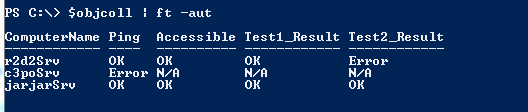
Listing a custom object collection
 
Why is this a good thing? First of all, if you want to store more than one type of data about a computer within your script, you can create those properties for your object and just add the data into them as you can see on the picture above. I stored information about 3 servers such as whether the servers are pingable, accessible and put some different test results as well.
Also, you can use filtering on your object collection, e.g. if I want to list rows (objects) where the 'Ping' column (property) is Error:
$objColl | where{$_.ping -eq "Error"}

Filtering a custom object collection

There are multiple ways to create an object.

  • System.Object with Add-Member - it is slower than other methods, however, you can specify the order of properties, you can add values to the properties when creating them:
    $myObject = new-Object -typename System.Object
    $myObject | add-Member -memberType noteProperty -name ComputerName -Value $srvname
    $myObject | add-Member -memberType noteProperty -name Ping -Value "N/A"
    $myObject | add-Member -memberType noteProperty -name Accessible -Value "N/A"
    $myObject | add-Member -memberType noteProperty -name Test1_Result -Value "N/A"
    $myObject | add-Member -memberType noteProperty -name Test2_Result -Value "N/A"


  • PSobject with Select - it is quicker than add-member and you can specify the order of properties, however you cannot add values to the properties when creating them and you assume all properties will have string type. It's not a big deal but not very elegant:
    $myObject = "" | Select ComputerName,Ping,Accessible,Test1_Result,Test2_Result

  • You can store property names in an array and pass it to the Select-Object filter:
    $arrProperties = @("ComputerName","Ping","Accessible","Test1_Result","Test2_Result")
    $myObject = "" | Select $arrProperties

  • PSObject defined via hash table - it's quick, you can add values to the properties in one go, however, as with hash tables in general, you cannot define the order of the properties, so it can be odd when you see the result and the columns are in random order
    $myObject = New-Object PSObject -Property @{ComputerName = $srvname; Ping = "OK"; Accessible = "N/A"; Test1_Result = "N/A"; Test2_Result = "N/A"}

The object is created, as you can see above, depending on how you create it, you can add values to properties on the fly or when the object is ready and can access the properties easily just referring to them with a dot:


More than one object

When you have more than one object, you can add them into an array and form a 'table':
$objColl = @()
$objColl += $myObject

Then you can modify the objects in the collection if you want to, e.g. if I want to make sure the Test1_Result column contains only a string of aaaa, I can simply do this:


There's one more good trick with object collections. I usually write scripts for large number of objects, e.g. check out 5000 servers, get data of 100 000 AD objects...etc. Therefore the object collection is big and non-indexed. Even though it's in the memory during runtime, it takes a while to search and find objects. One of my colleague had a good idea and I've been using it since then: put the objects into a hash table with the key that you want to search for. E.g. if you know that you want to search for the ComputerName and you want to read a property of that object from your collection you can make the ComputerName the hash key and the object itself the hash value:
$objCollHash = @{}
$objColl | %{$objCollHash.add($_.ComputerName, $_)}

Now we can test how much time it takes to find an object in a collection of 9999 objects with 3 attributes, first with normal filter:


900+ millisecond, not bad, so less than a second to find an object from 9999.

Ok, let's see the hash table:


Ughm... less than a millisecond! 900+ times quicker than the previous one. I guess it's worth the effort to put those 2 lines into the script.

That's all for today. Hope this helps people to understand why objects and pipe'ing is useful.

t